Compliance Modules
Compliance Module
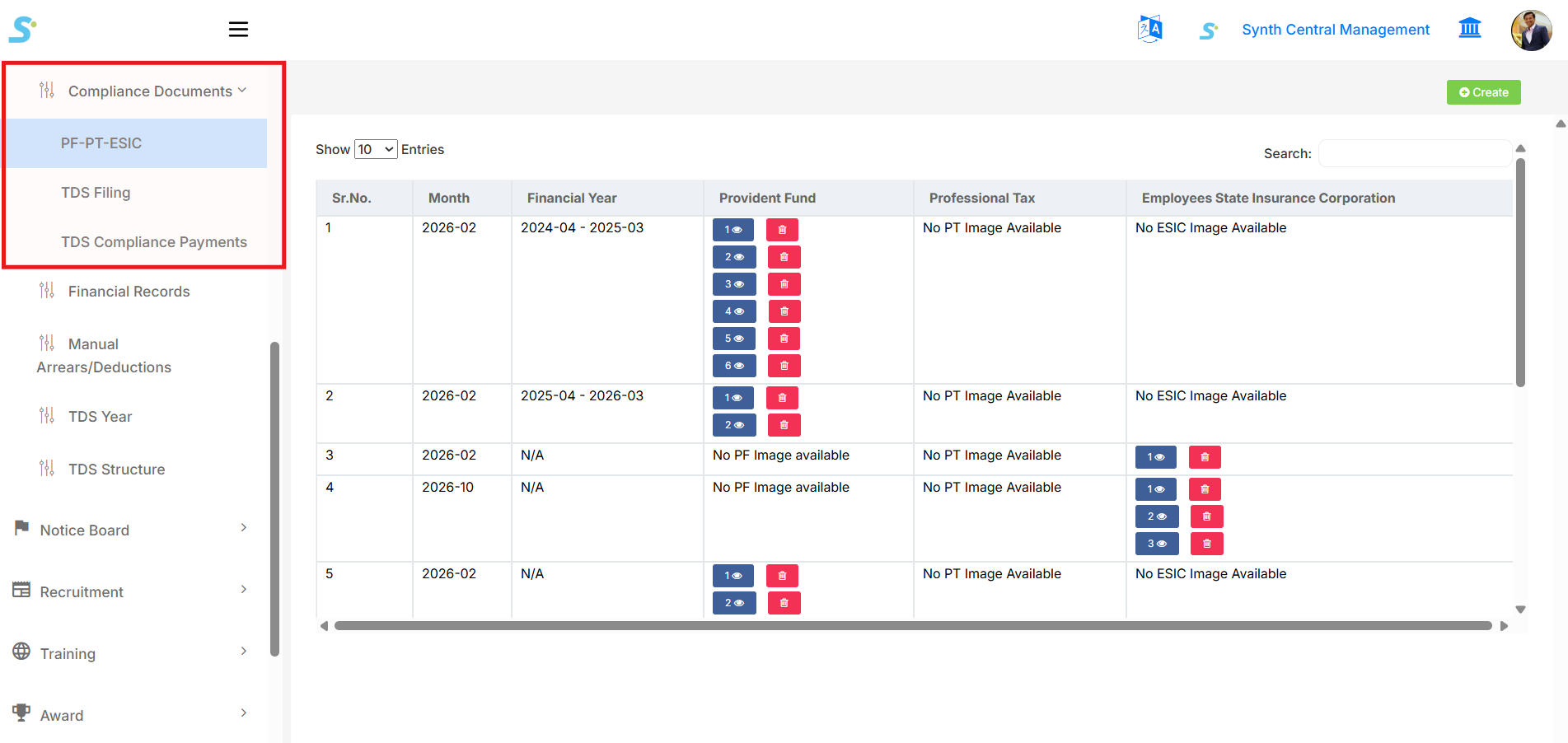
Step 1: Open Compliance Documents Module
- Go to the HRMS application portal and log in, then perform the below steps.
- From the left-side menu, click on Compliance Documents.
- Select PF-PT-ESIC from the dropdown list.
Step 2: View PF-PT-ESIC Records
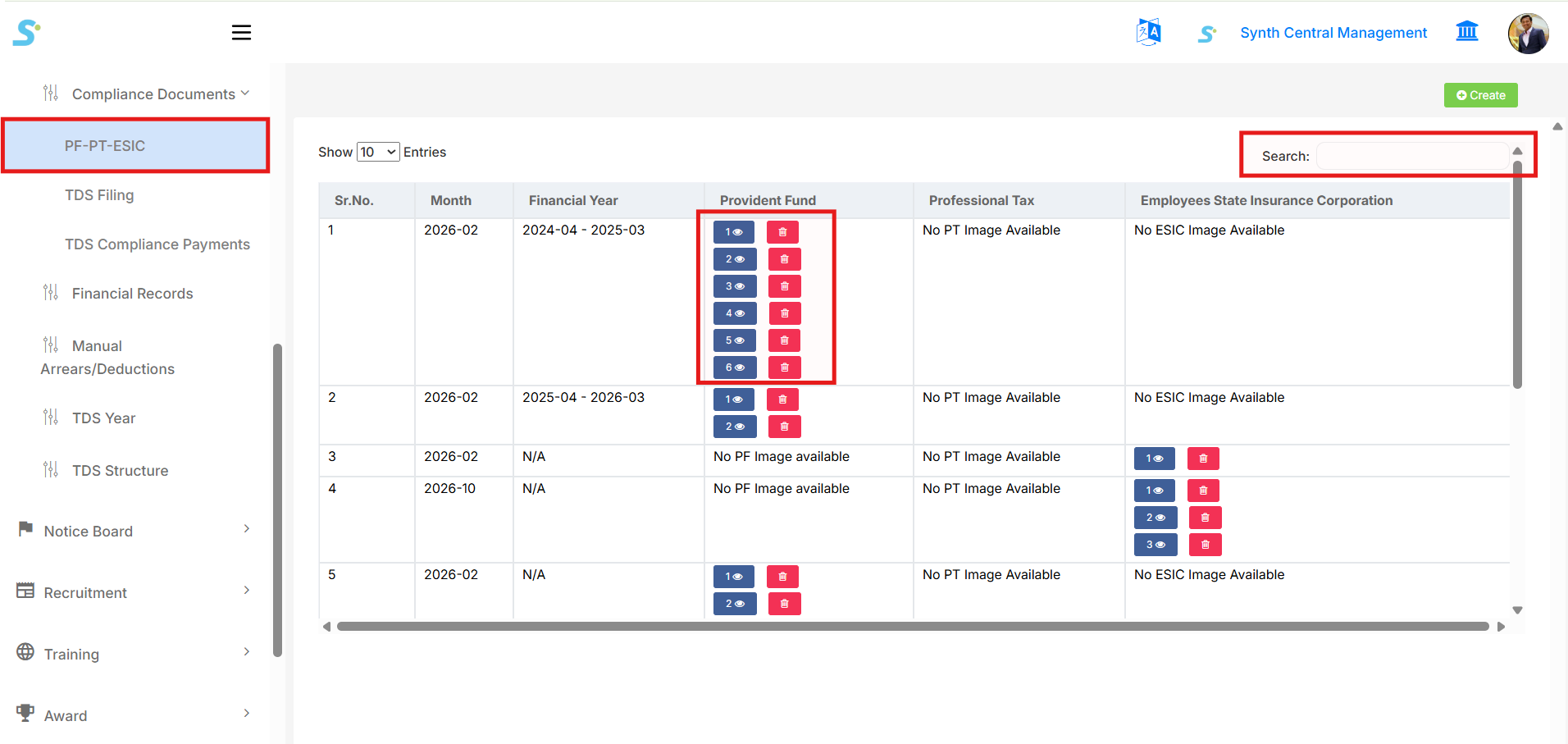
After clicking on PF-PT-ESIC, the listing screen will open.
On this page, you can view:
- Sr. No.
- Month
- Financial Year
- Provident Fund (PF) Documents
- Professional Tax (PT) Documents
- Employees State Insurance Corporation (ESIC) Documents
You can also:
- Search records
- Change number of entries
- View uploaded documents
- Delete uploaded documents
Step 3: Create New Compliance Entry
- Click on the Create button located at the top-right corner of the screen.
- The Compliance Entry Form will open.
Step 4: Enter Compliance Details
- Select Type* (PF / PT / ESIC).
- Select Financial Year*.
- Select Month*.
- Click on Choose Files to upload the compliance document.
Fields marked with (*) are mandatory.
Step 5: Save Compliance Record
- After filling all required details, click on the Save button.
- The compliance document will be saved successfully.
- The uploaded record will now appear in the listing screen.
Step 6: View or Delete Uploaded Document
- Click on the Eye icon to view the uploaded document.
- Click on the Delete icon to remove the document if required.
Compliance Process Completed
- The document is stored month-wise.
- Records can be accessed anytime.
- Useful for audit and statutory compliance verification.
TDS Filing Module
Step 1: Open TDS Filing Module
- Go to the HRMS application portal and log in, then perform the below steps.
- From the left-side menu, click on Compliance Documents.
- Select TDS Filing from the dropdown list.
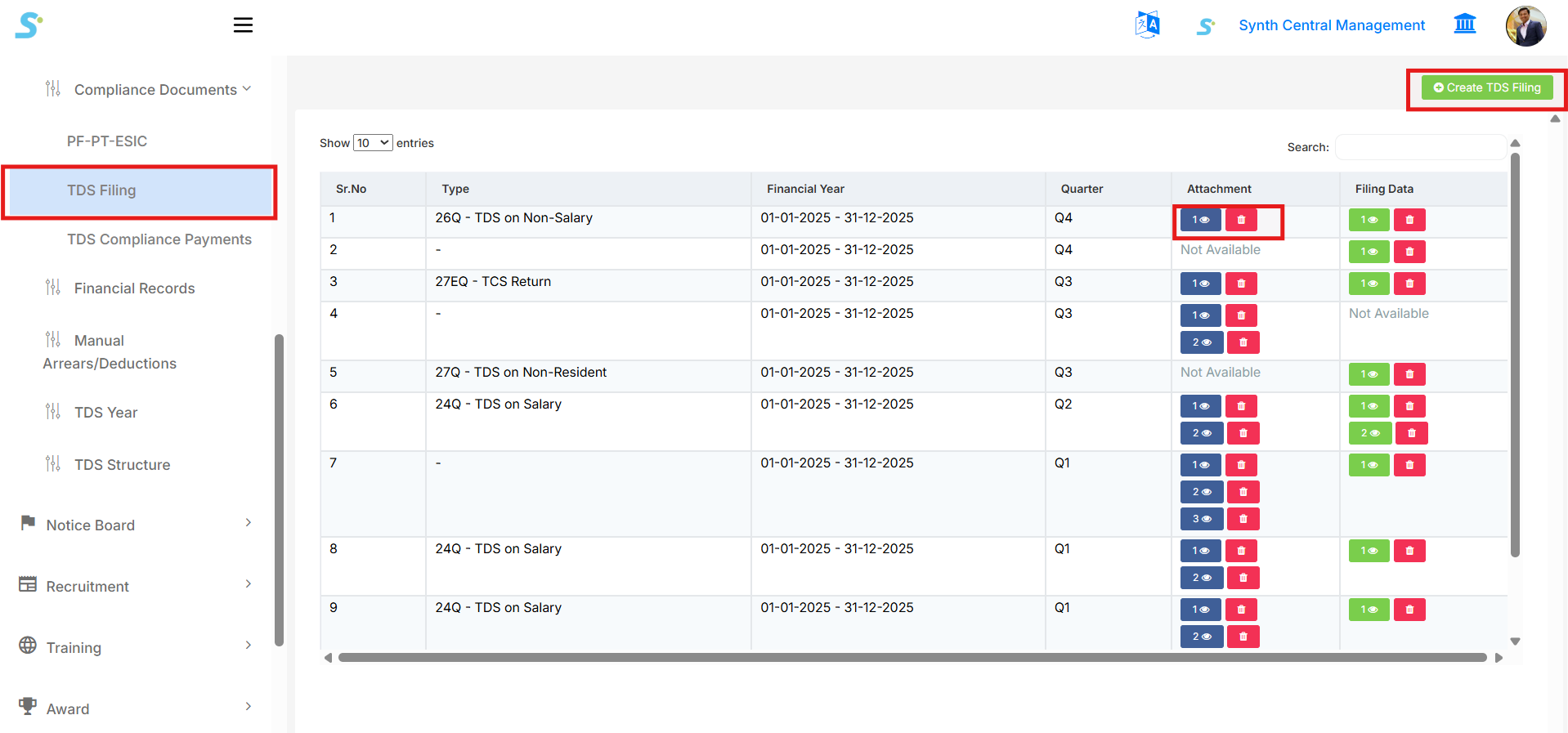
Step 2: View TDS Filing Records
After clicking on TDS Filing, the listing screen will open.
On this page, you can view:
- Sr. No.
- Type (24Q, 26Q, 27Q, 27EQ, etc.)
- Financial Year
- Quarter
- Attachment
- Filing Data
You can also:
- Search records
- Change number of entries
- View uploaded attachments
- Delete attachments
- Create new TDS filing entry
Step 3: Create New TDS Filing
- Click on the Create TDS Filing button located at the top-right corner.
- The TDS Filing Form will open.
Step 4: Enter TDS Filing Details
- Select Type* (24Q / 26Q / 27Q / 27EQ).
- Select Financial Year*.
- Select Quarter* (Q1 / Q2 / Q3 / Q4).
- Upload Attachment (if applicable).
- Upload Filing Data file.
Fields marked with (*) are mandatory.
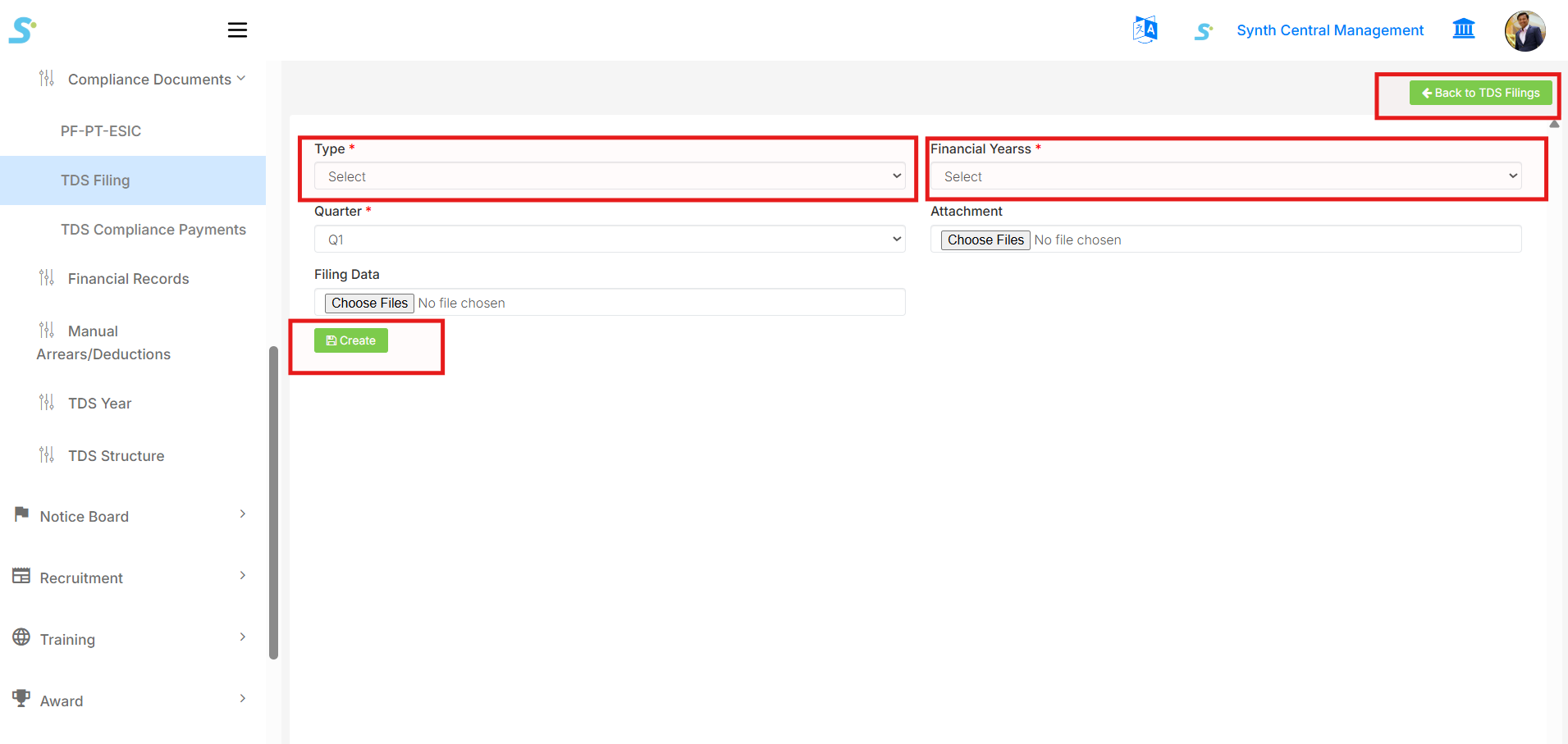
Step 5: Save TDS Filing Record
- After filling all required details, click on the Create button.
- The TDS filing record will be saved successfully.
- The uploaded record will now appear in the listing screen.
Step 6: View or Delete Uploaded Files
- Click on the Eye icon to view the uploaded attachment or filing data.
- Click on the Delete icon to remove the file if required.
TDS Filing Process Completed
- TDS records are stored quarter-wise.
- Records can be accessed anytime.
- Useful for audit and statutory compliance verification.
TDS Compliance Payments
Step 1: Open TDS Compliance Payments
- Go to the HRMS application portal and log in, then perform the below steps.
- From the left-side menu, click on Compliance Documents.
- Select TDS Compliance Payments from the dropdown list.
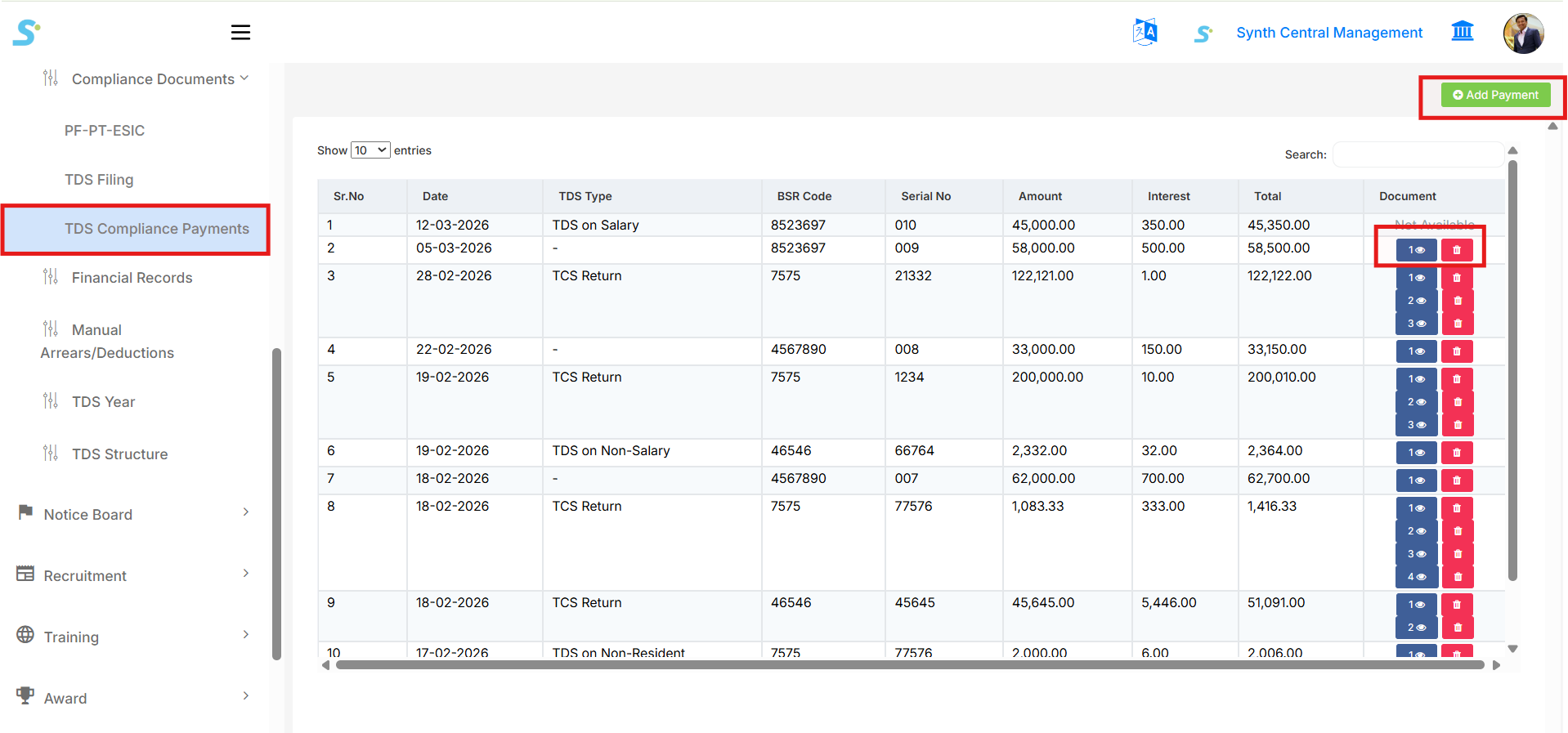
Step 2: View TDS Compliance Payments
After clicking on TDS Compliance Payments, the listing screen will open.
On this page, you can view:
- Sr. No.
- Date of Payment
- TDS Type (TDS on Salary, TCS Return, TDS on Non-Salary, etc.)
- BSR Code
- Serial No.
- Amount Paid
- Interest
- Total
- Document (if available)
You can also:
- Search records
- Change number of entries displayed
- View uploaded documents
- Delete records
- Add new TDS Compliance Payment entry
Step 3: Add New TDS Compliance Payment
- Click on the Add Payment button located at the top-right corner.
- The Payment Form will open.
Step 4: Enter Payment Details
- Select Payment Date.
- Enter BSR Code.
- Enter CIN No. (if applicable).
- Select TDS Type (TDS on Salary, TCS Return, etc.).
- Enter Serial No..
- Enter the Amount.
- Enter Interest (if applicable).
- Upload any relevant Document.
- Enter any Remarks.
Fields marked with (*) are mandatory.
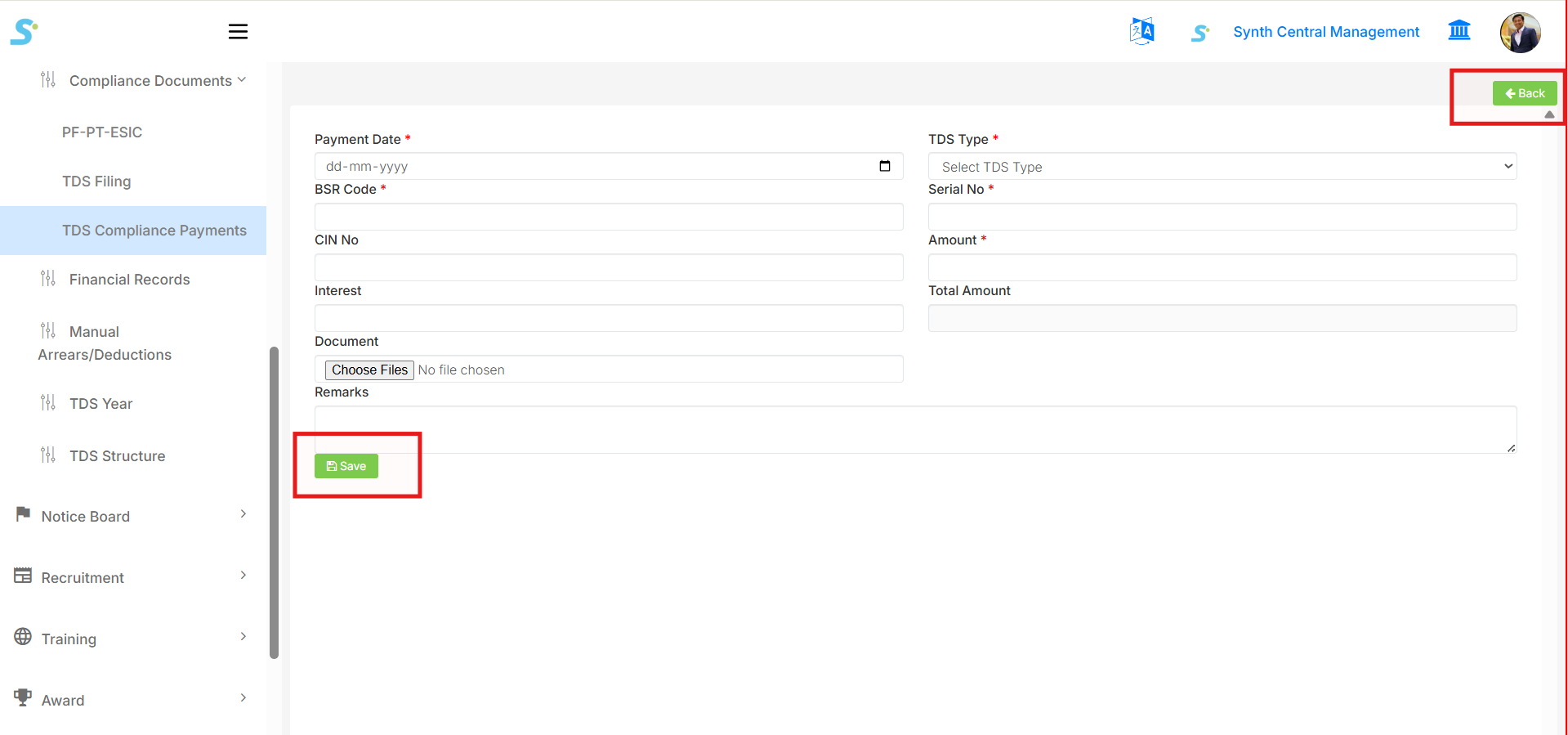
Step 5: Save TDS Compliance Payment Record
- After filling all required details, click on the Save button.
- The TDS compliance payment record will be saved successfully.
- The uploaded record will now appear in the listing screen.
Step 6: View or Delete Uploaded Documents
- Click on the Eye icon to view the uploaded document.
- Click on the Delete icon to remove the document if needed.
TDS Compliance Payment Process Completed
- TDS compliance payments are tracked and stored.
- Records can be accessed anytimes.
- Useful for audit and statutory compliance verification.