IRS Module
Incident Reporting System (IRS)
Step 1: Login to IRS Module
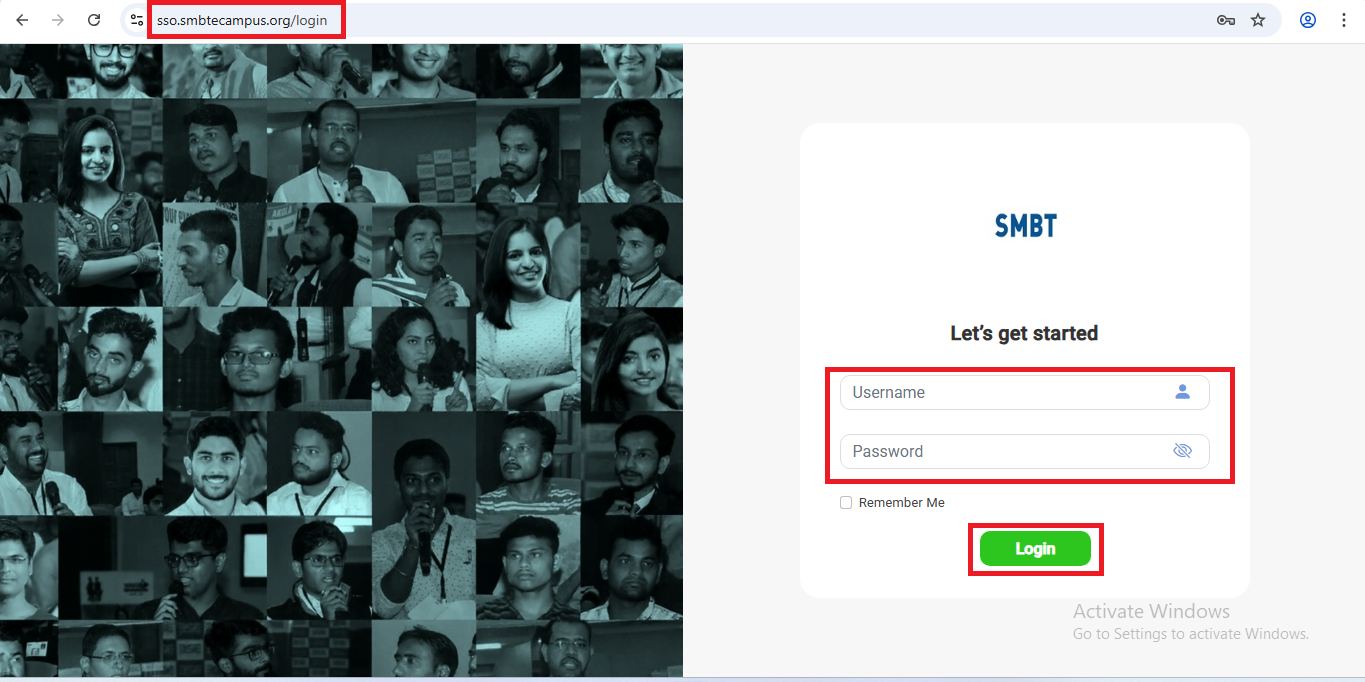
- Open your web browser.
- Enter the following URL:
https://sso.smbtecampus.org/login - Log in using your eCampus App username and password.
Step 2: Access IRS Module
You can access the IRS module using the same login credentials that you use for the eCampus application.
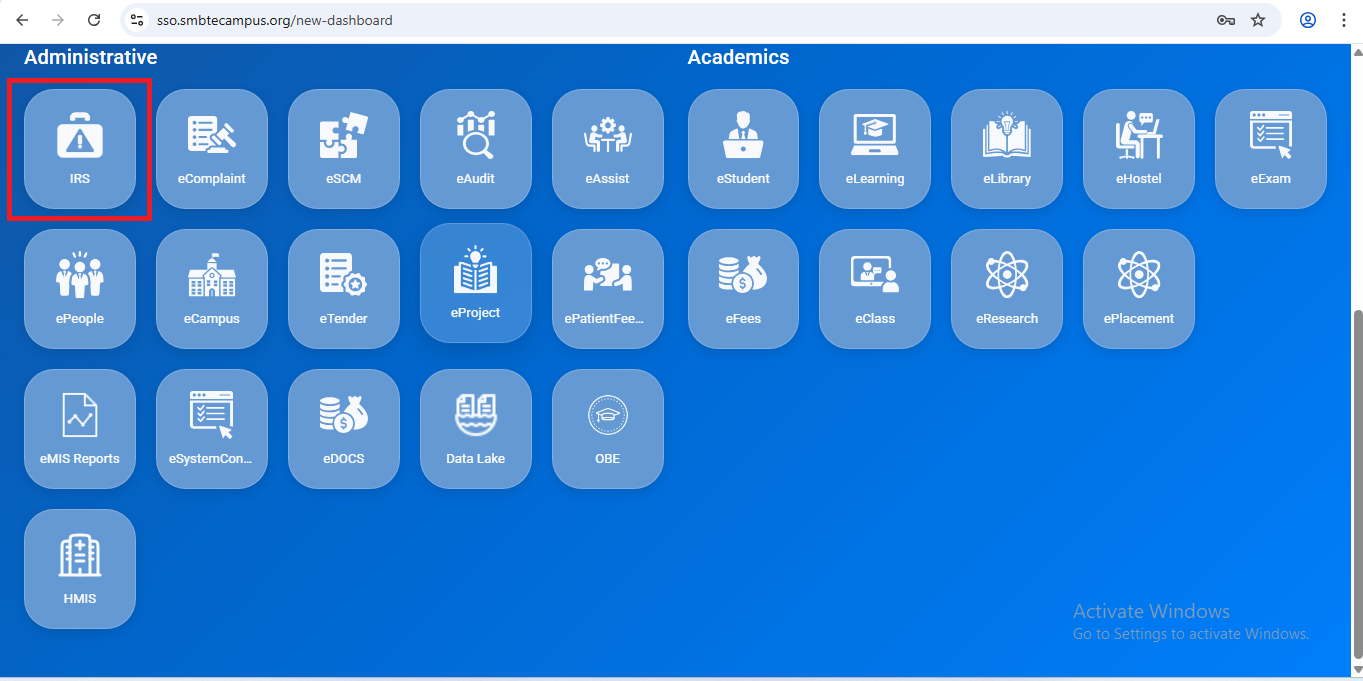
Step 3: Open IRS Module
After login, click on the IRS Module from the dashboard as shown in the image.
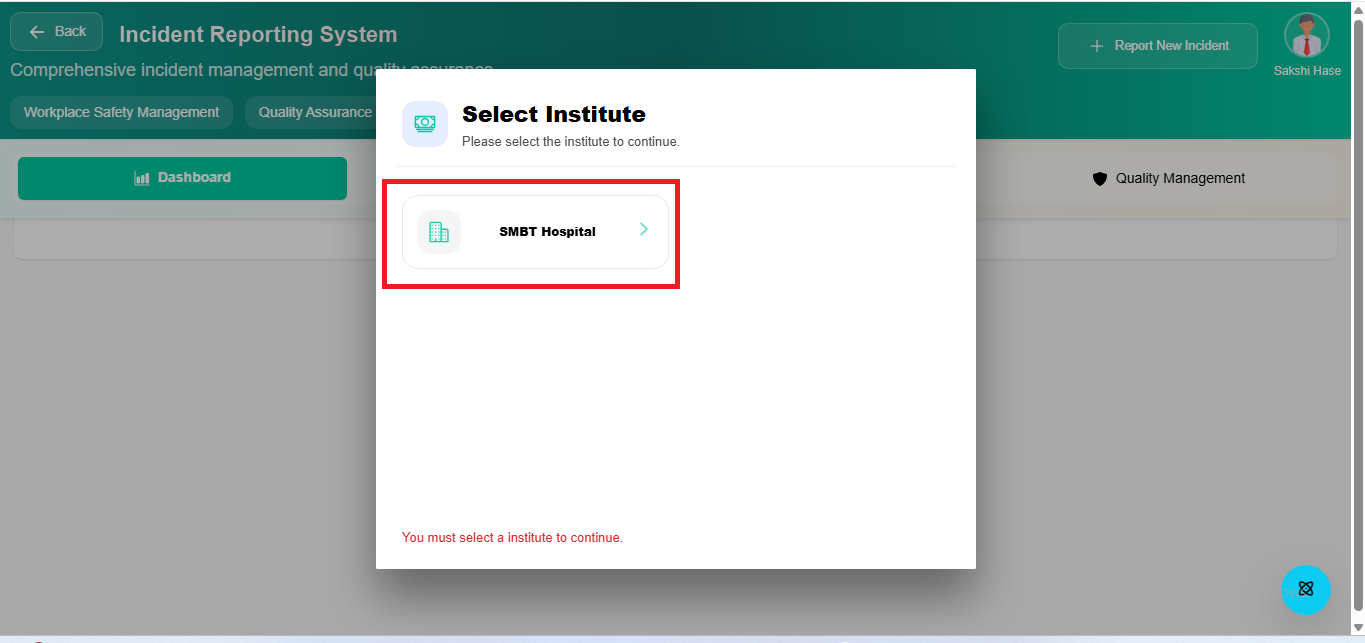
Step 4: Select Institute
Select the Institute for which you want to report an incident.
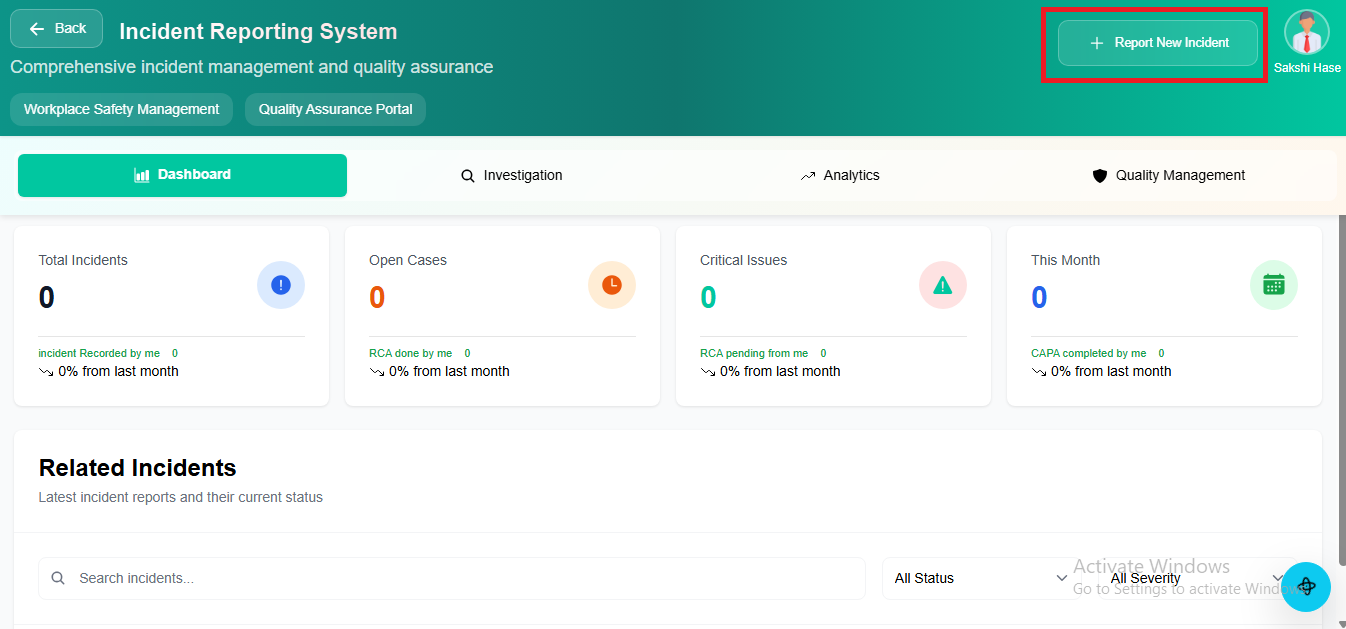
Step 5: Request New Incident
Click on the “Request New Incident” button located at the top-right corner of the screen.
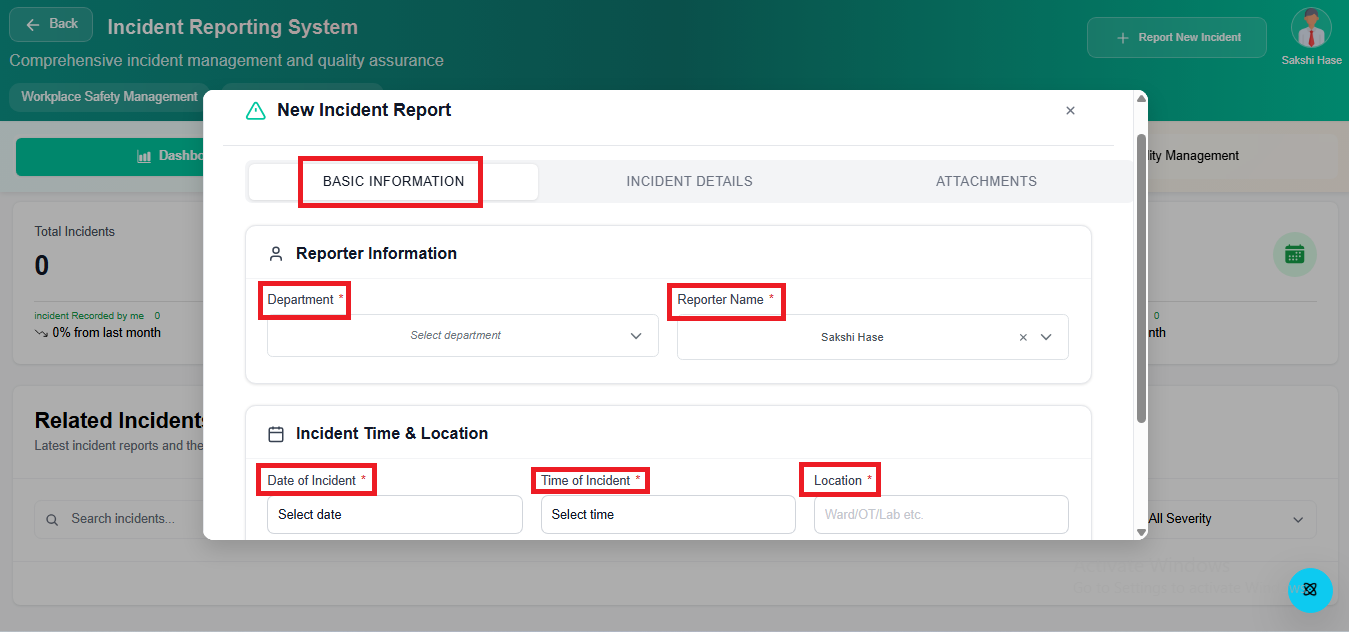
Step 6: Enter Basic Incident Information
A new Incident Form window will open.
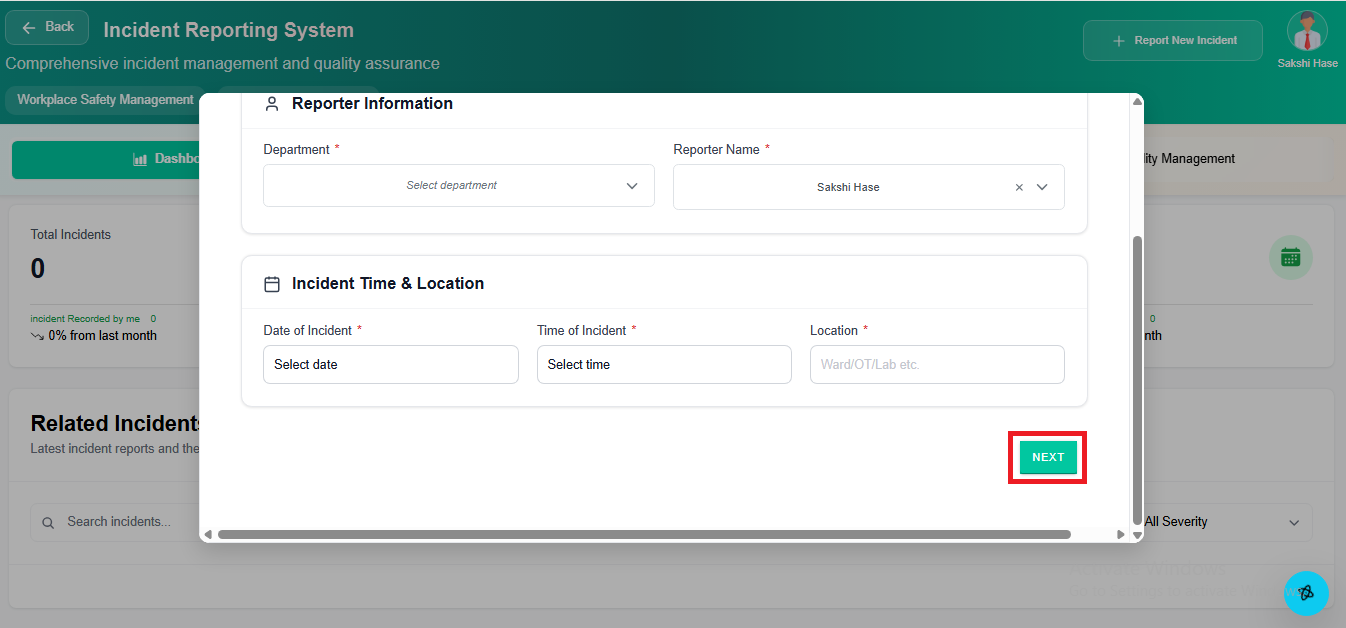
Enter the following basic details:
- Department
- Reporter Name
- Incident Date & Time
- Location
After entering the details, click Next to proceed.
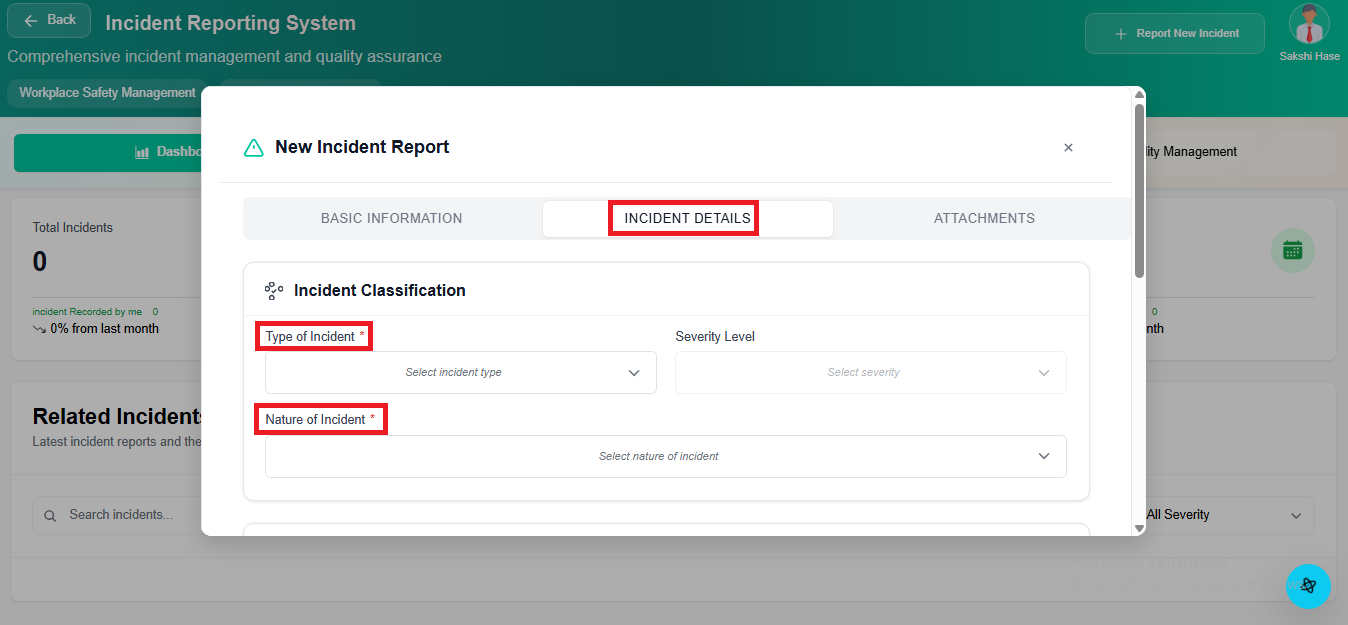
Step 7: Incident Details
In the Incident Details tab, select: - Type of Incident - Nature of Incident
These selections help in proper categorization and analysis.
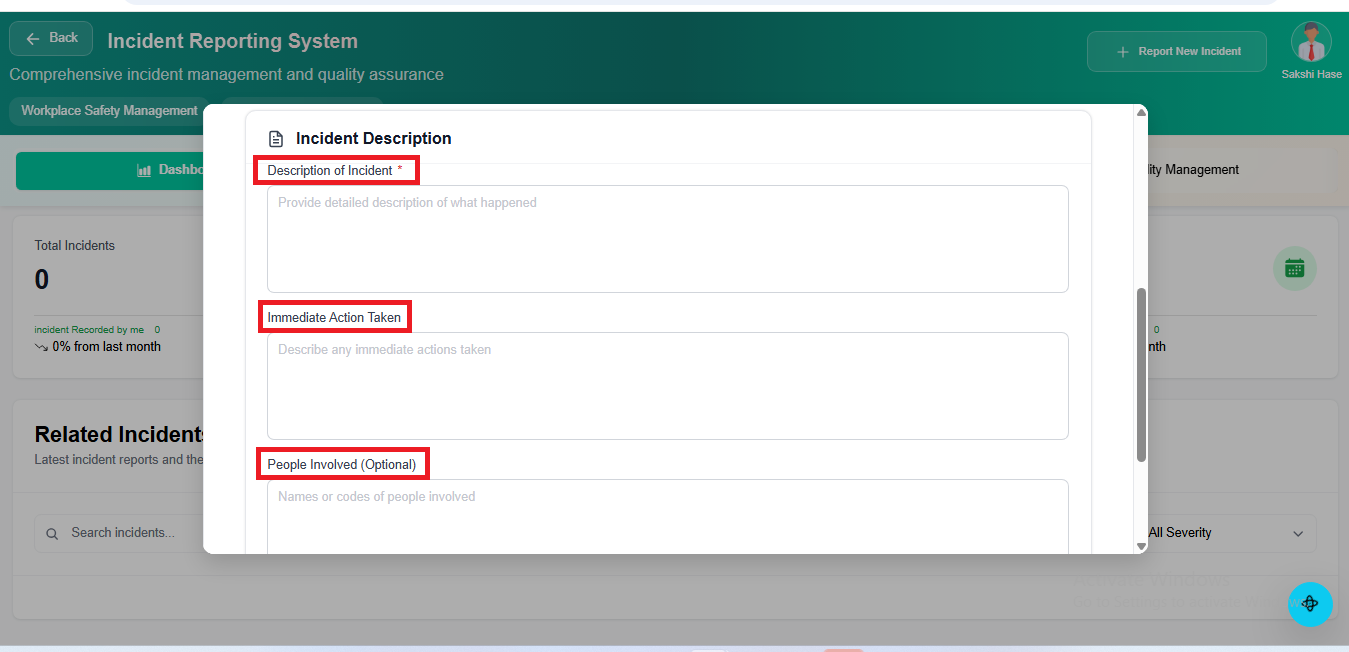
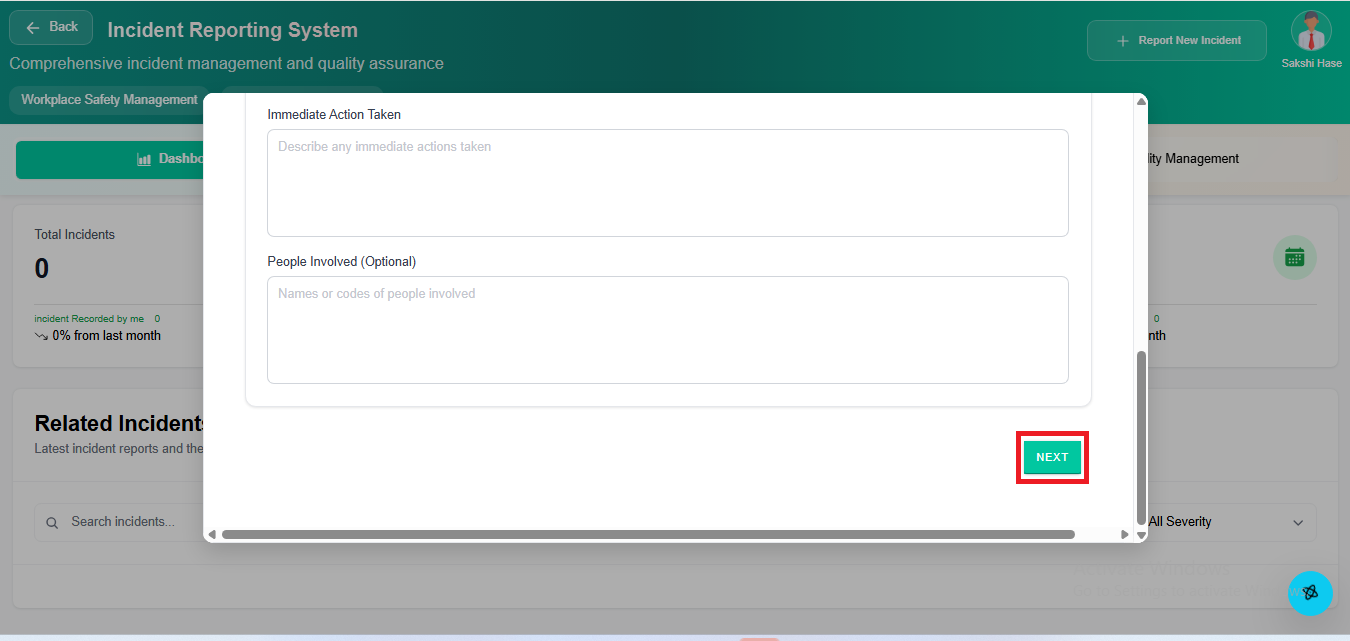
Step 8: Incident Description
Enter the following information:
- Incident Description
- Immediate Action Taken
- People Involved (optional)
Ensure the description is clear and accurate.
Step 9: Proceed to Attachments
Click the Next button to move to the Attachments tab.
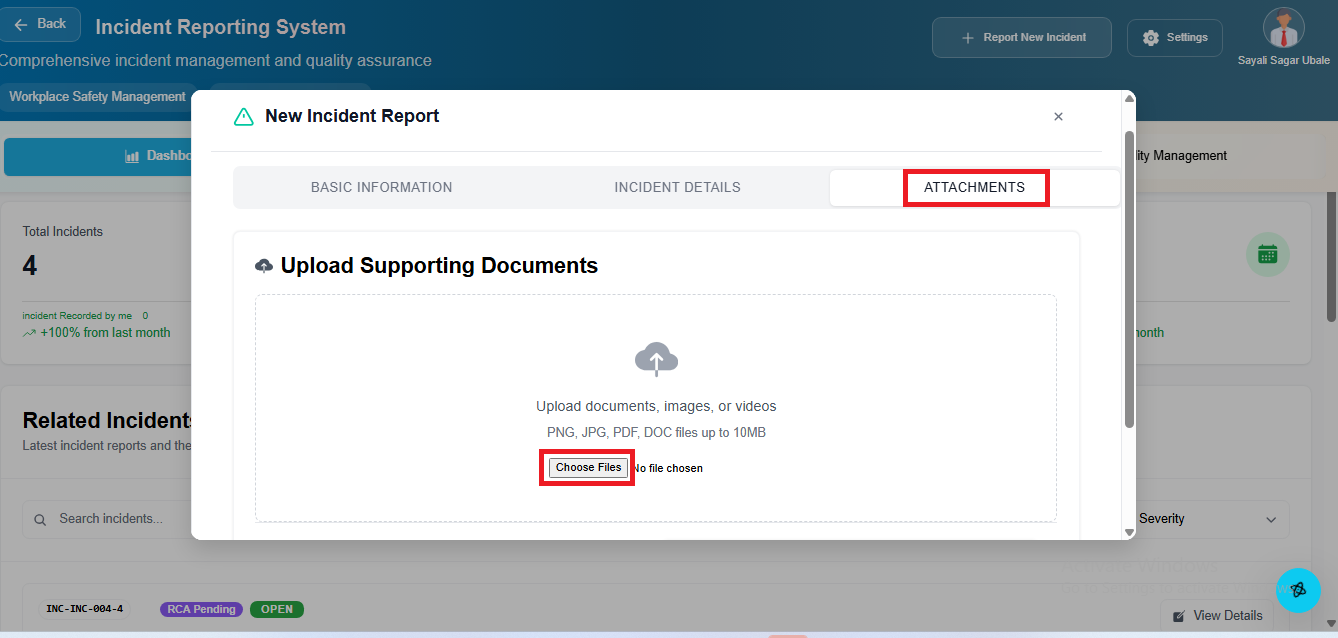
Step 10: Upload Attachments
In the Attachments tab, upload any relevant supporting documents, images, or reports (if available).
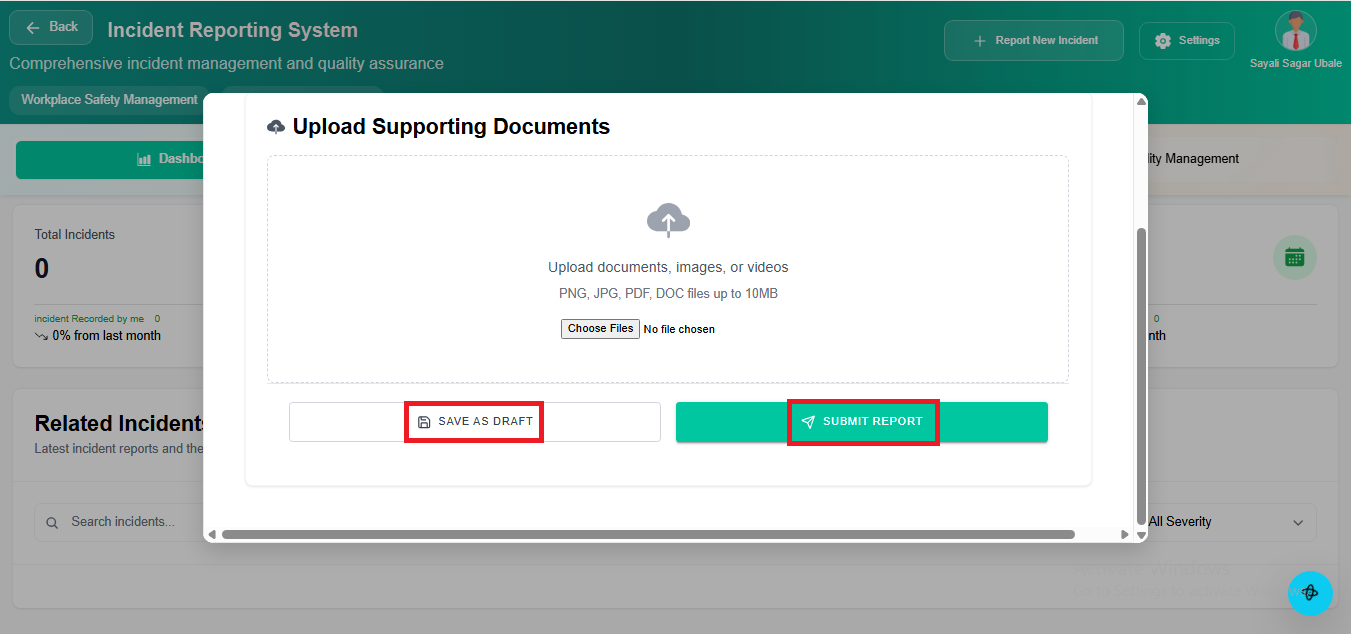
Step 11: Submit or Save as Draft
After reviewing all entered information:
- Click Submit to send the incident for review
- Or click Save as Draft to complete it later
Incident Submission Complete
Once submitted, the incident will be: - Reviewed by the concerned department - Processed by the Quality Team