Notice Board Module
Step 1: Open Notice Board Module
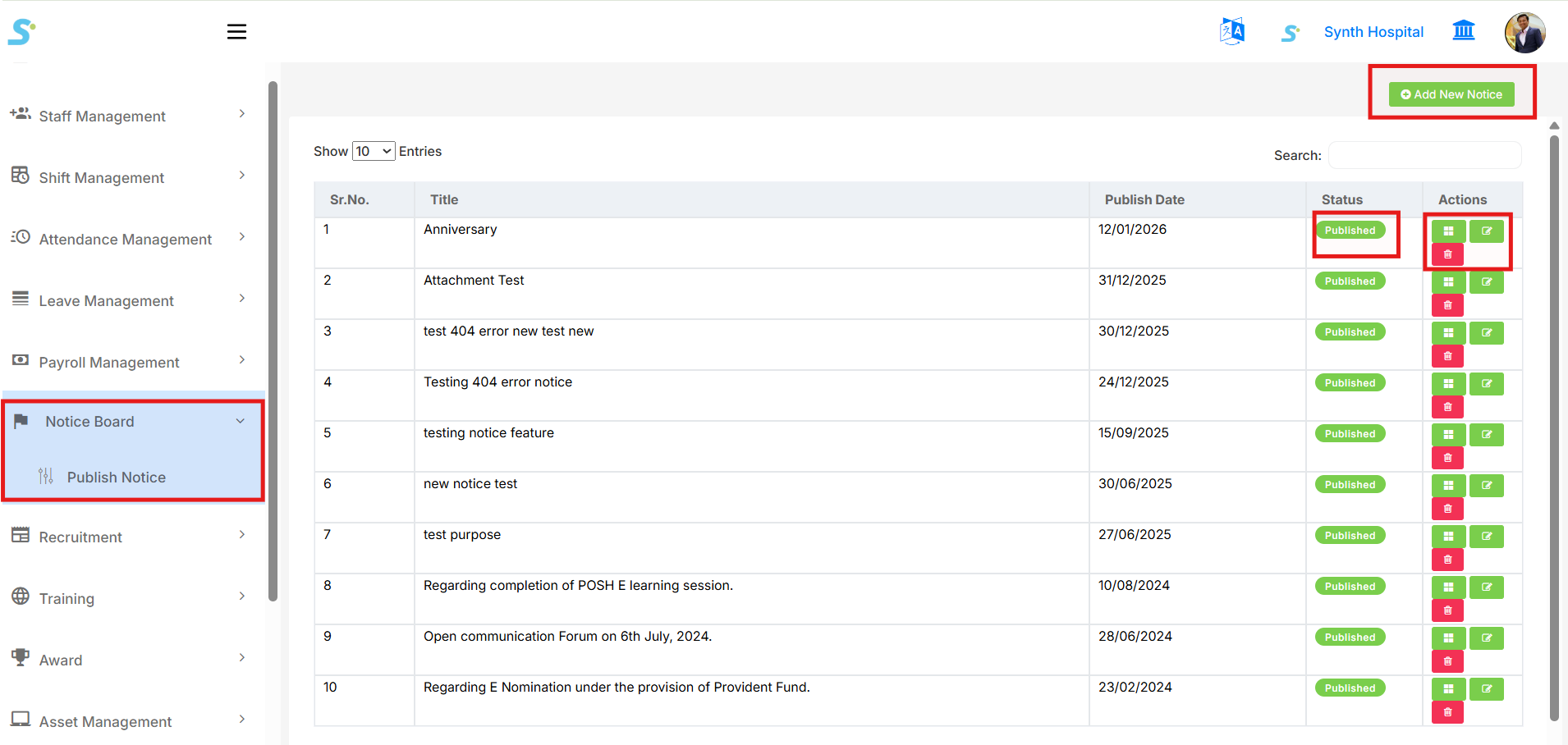
Go to Notice Board from the side menu.
Under the Notice Board module, click on Publish Notice.
This page displays the list of published notices.
The notice list shows details such as:
- Sr. No.
- Title
- Publish Date
- Status
- Actions
From the top-right side, click Add New Notice to create a new notice.
In the Actions column, you can:
- View notice details
- Edit notice
- Delete notice
Step 2: Add New Notice
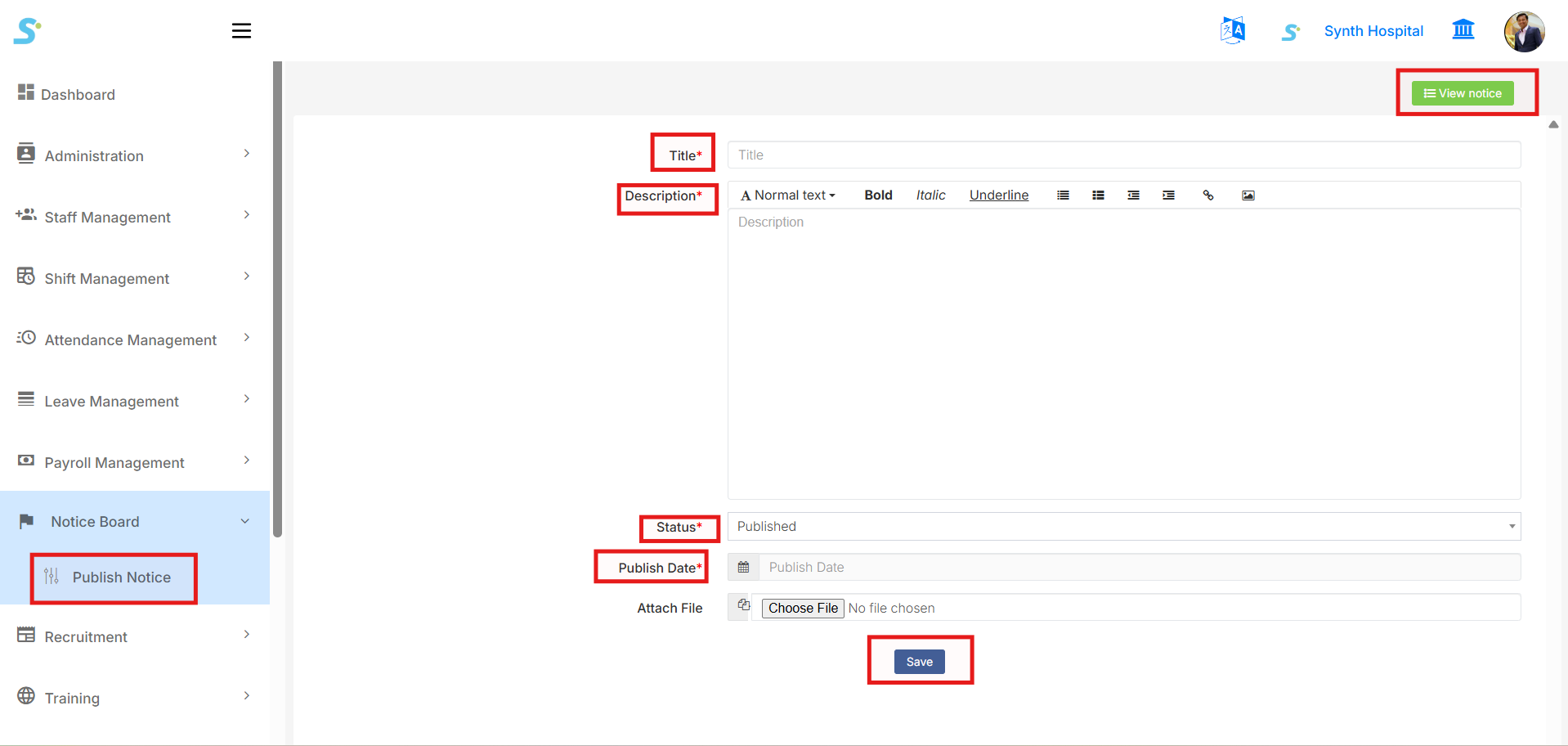
Click on Add New Notice from the top-right side of the notice list page.
The notice form will open.
Enter the required notice details:
- Title
-
Enter the notice title.
-
Description
- Enter the notice description using the text editor.
-
You can format the description using options like bold, italic, underline, list, alignment, link, and image.
-
Status
-
Select the notice status, such as Published.
-
Publish Date
-
Select the date when the notice should be published.
-
Attach File
- Upload an attachment if required.
After entering all required details, click the Save button.
Once saved, the notice will be displayed in the publish notice list.