Training Management Module
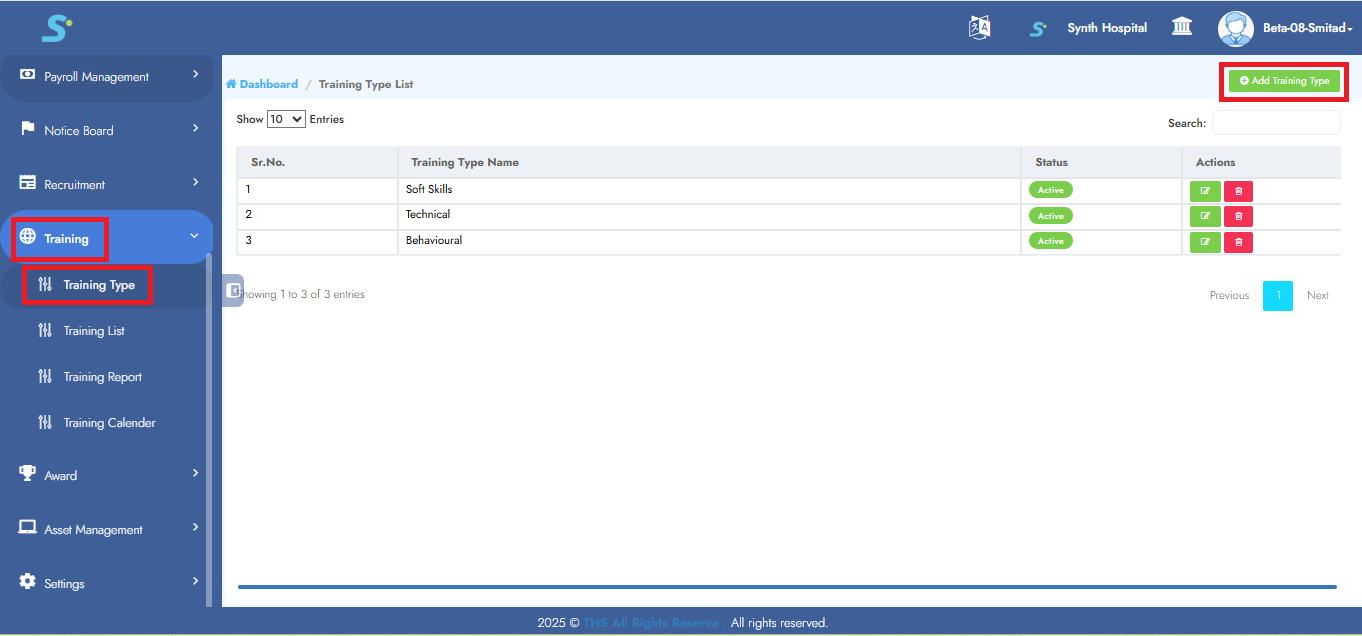
Step 1:- Add a New Training Type
Navigate to the Training module, then click on the Training Type sub-module.
Next, click on the Add Training Type button located at the top right corner.
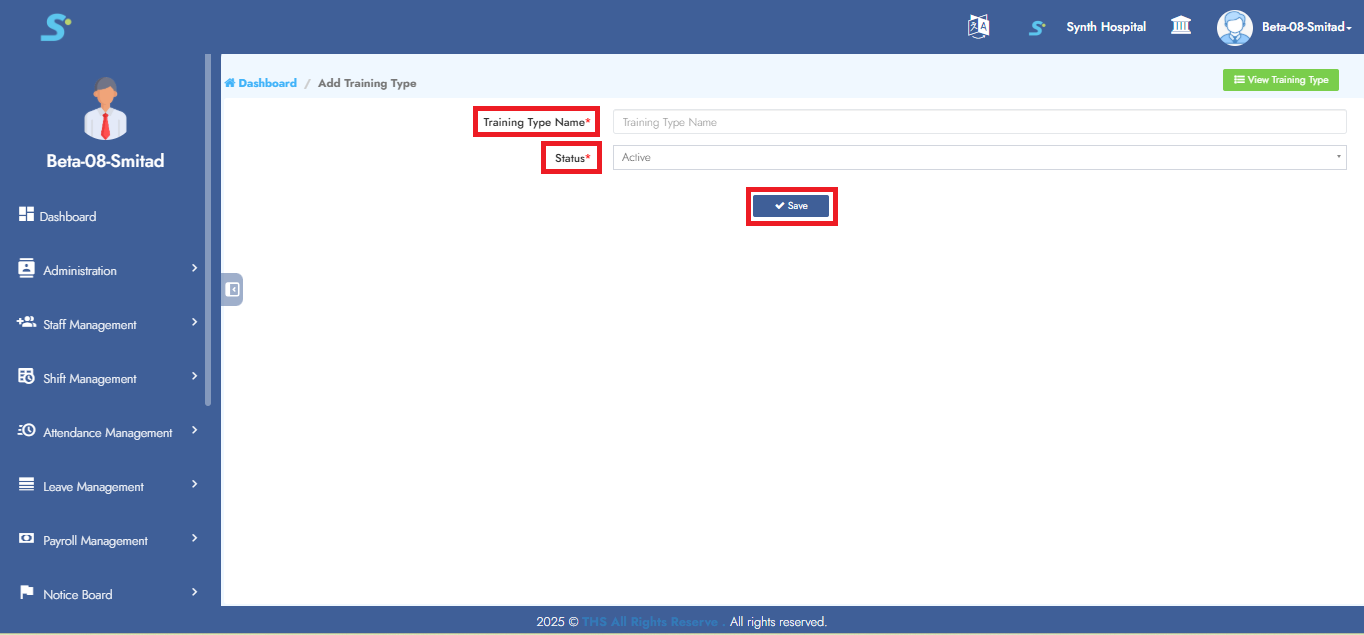
Step 2:- Enter Training Type Details
Enter the Training Type Name and select the appropriate Status.
Then click on the Save button to add the record successfully.
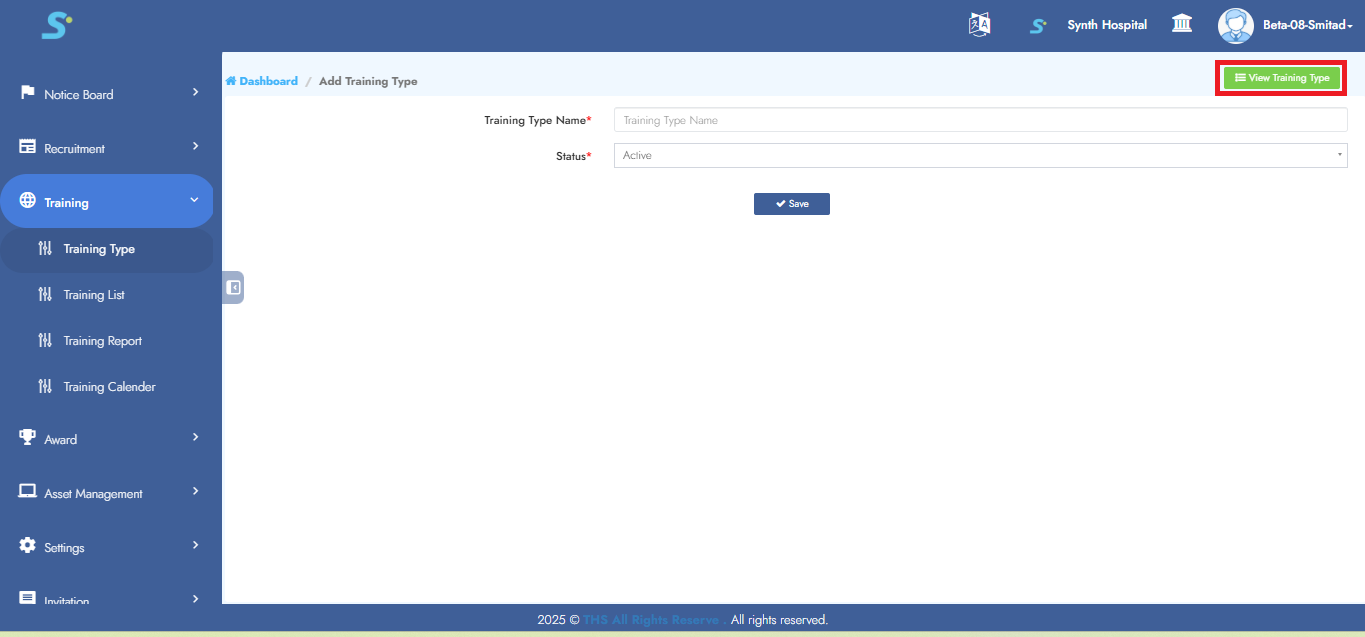
Step 3:- View Created Training Types
To view the training types you have created, click on the View Training Type button located at the top right corner, as shown in the image.
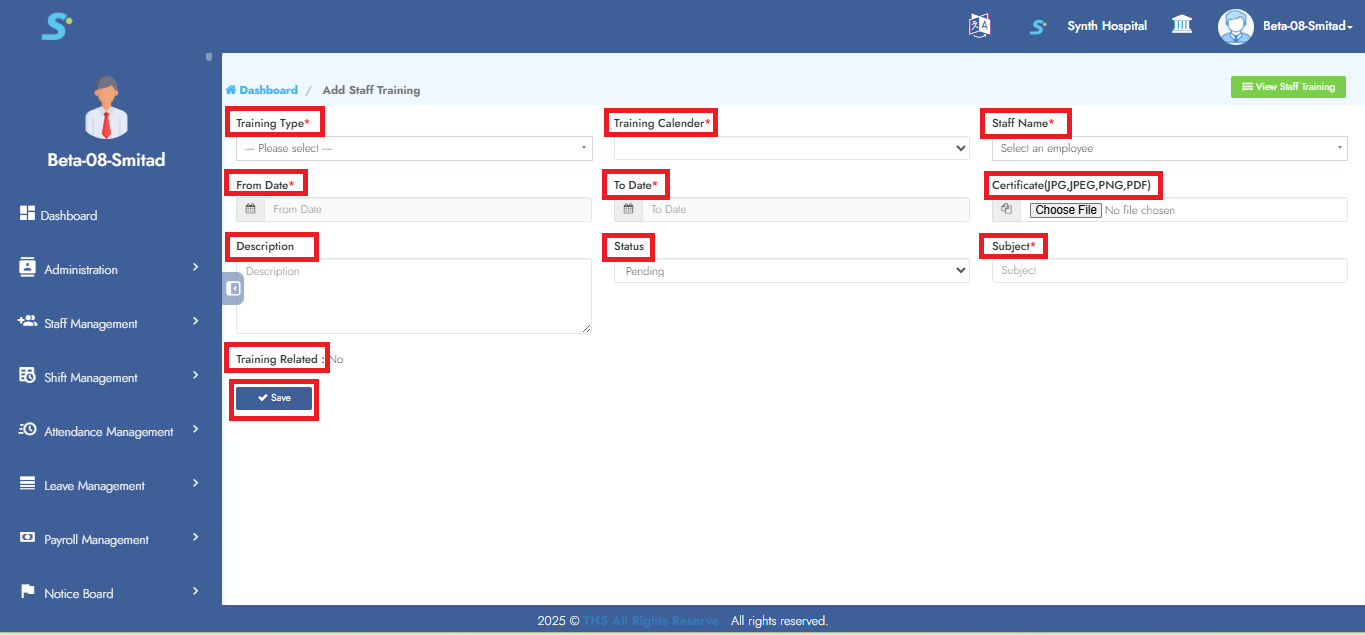
Step 4:- Add Training Details
Enter the following details:
Training Type, Training Calendar, Staff Name, From Date, To Date, Subject,
and optionally add Certificate, Description, and Status.
Then click on the Save button to add the record successfully.
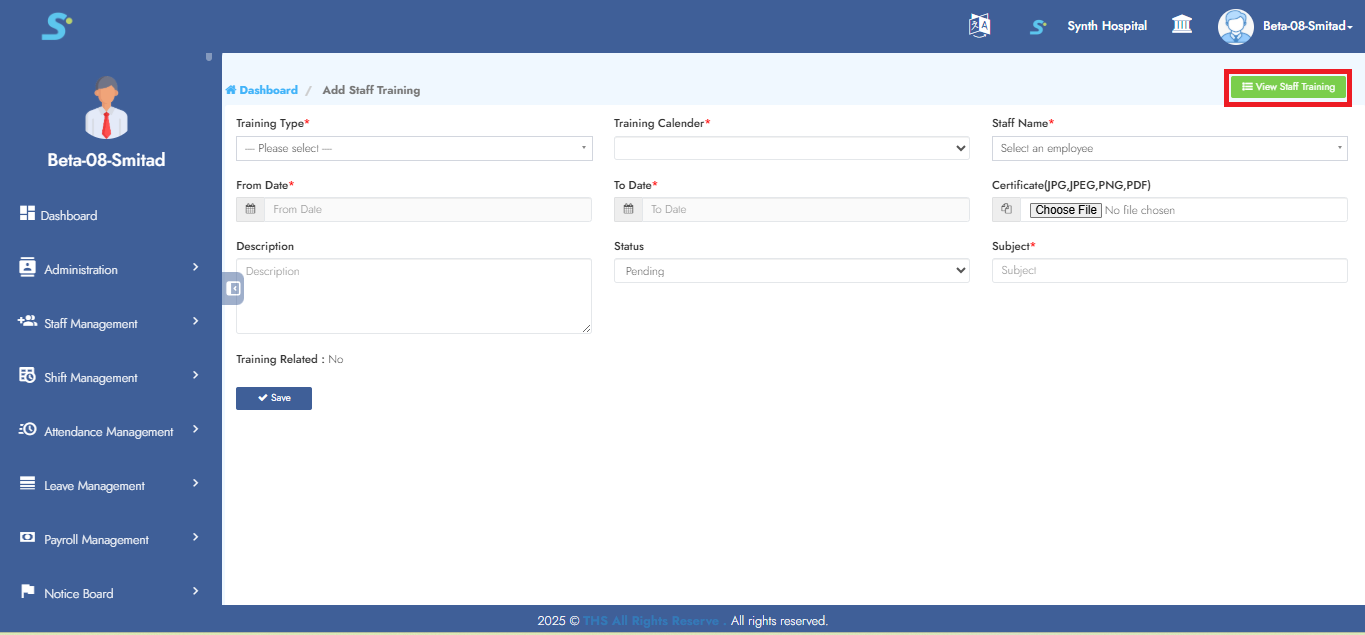
Step 5:- View Created Staff Trainings
To view the created training records, click on the View Staff Training button located at the top right corner, as shown in the image.
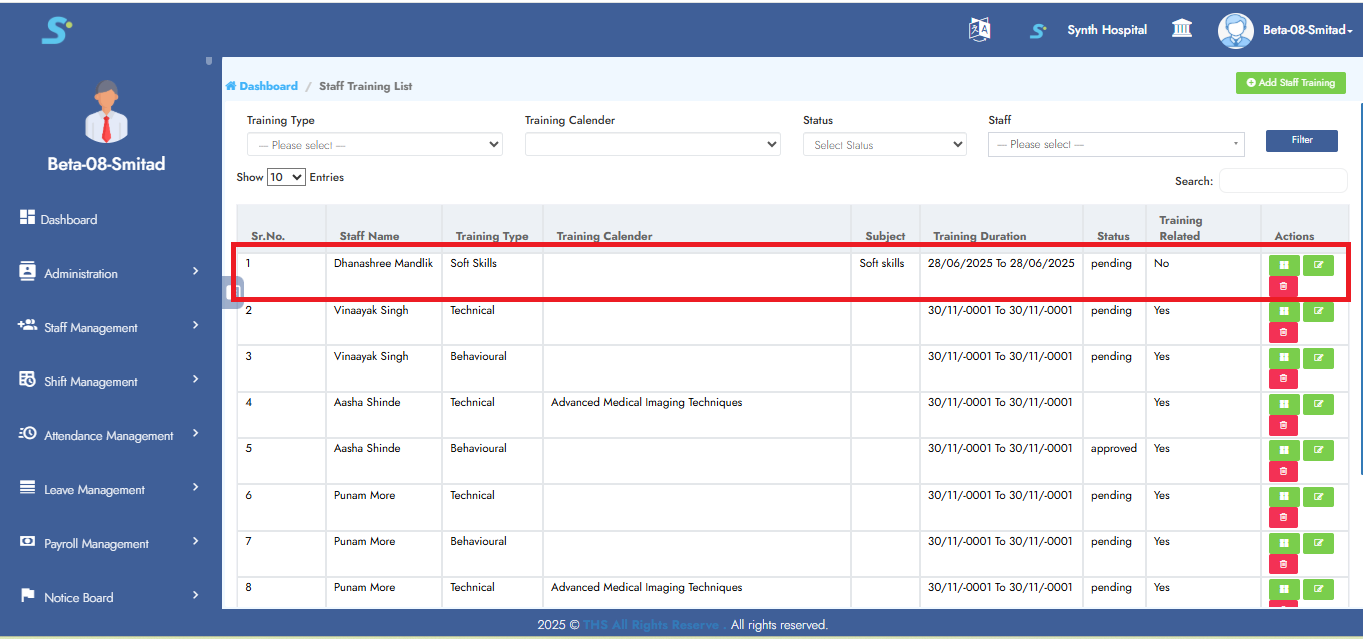
Step 6:- View Training Record
Your created training will be displayed as shown in the image.
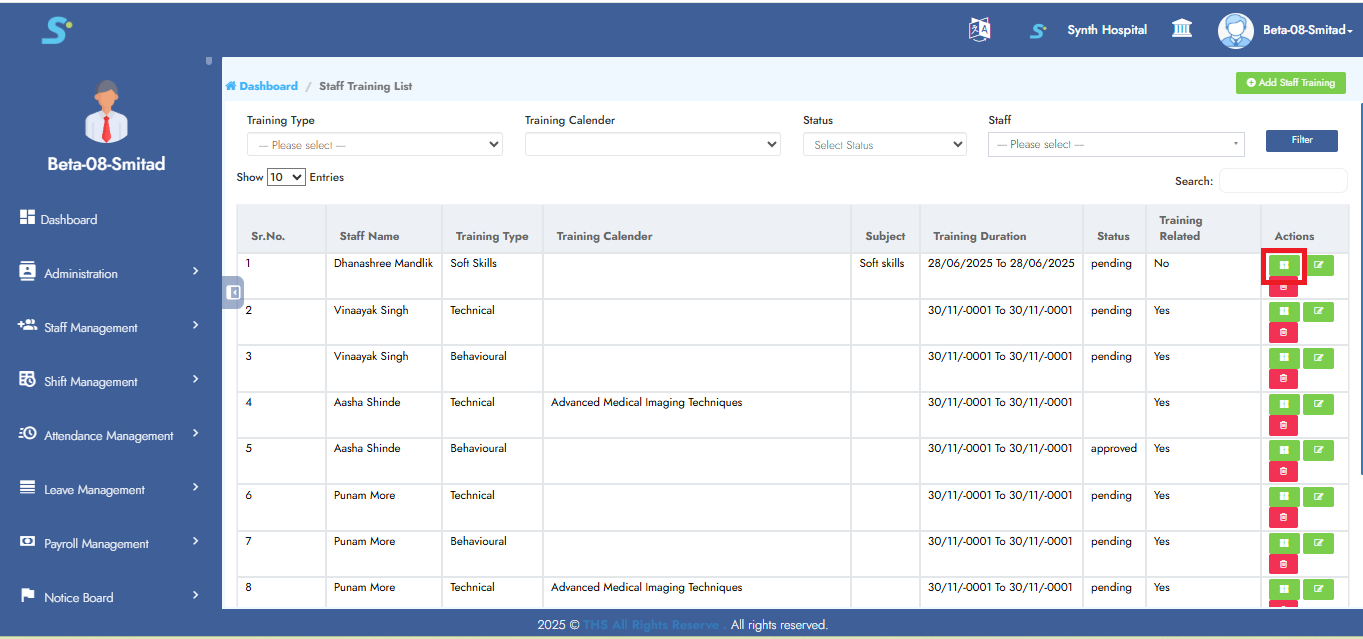
Step 7:- View Training Details
To see detailed information of the created training, click on the View Details button as shown in the image.
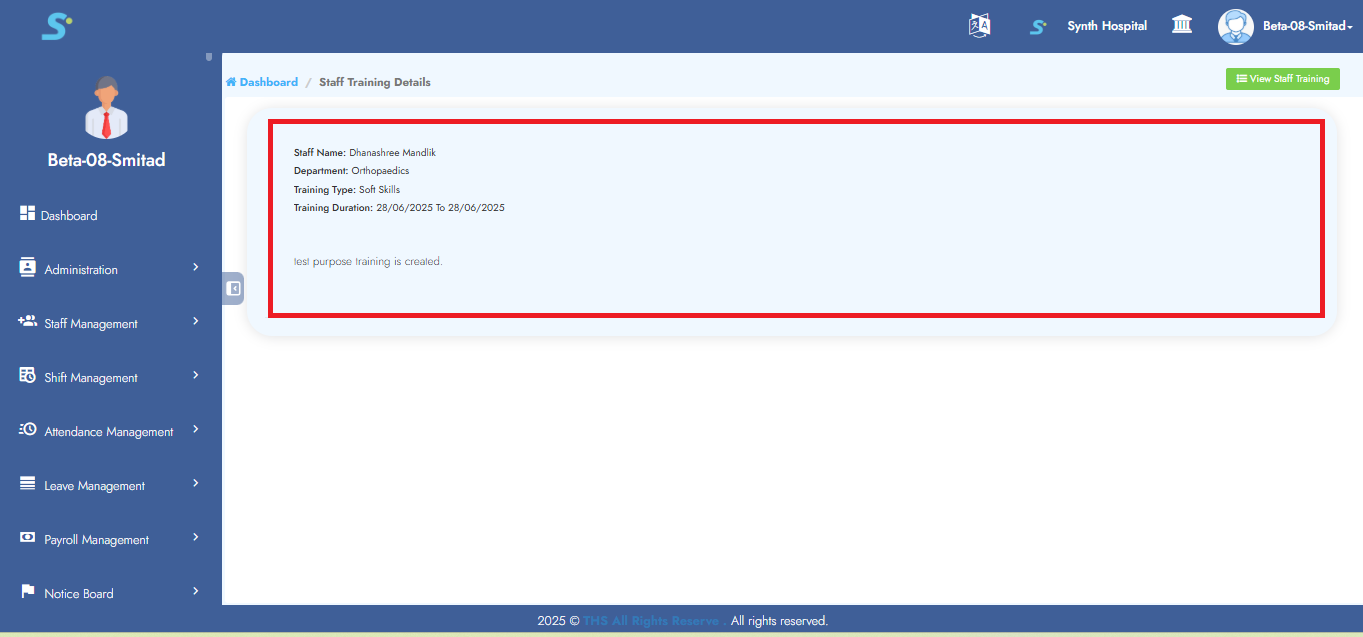
Step 8:- Training Details Screen
The detailed training screen will appear as shown in the image.
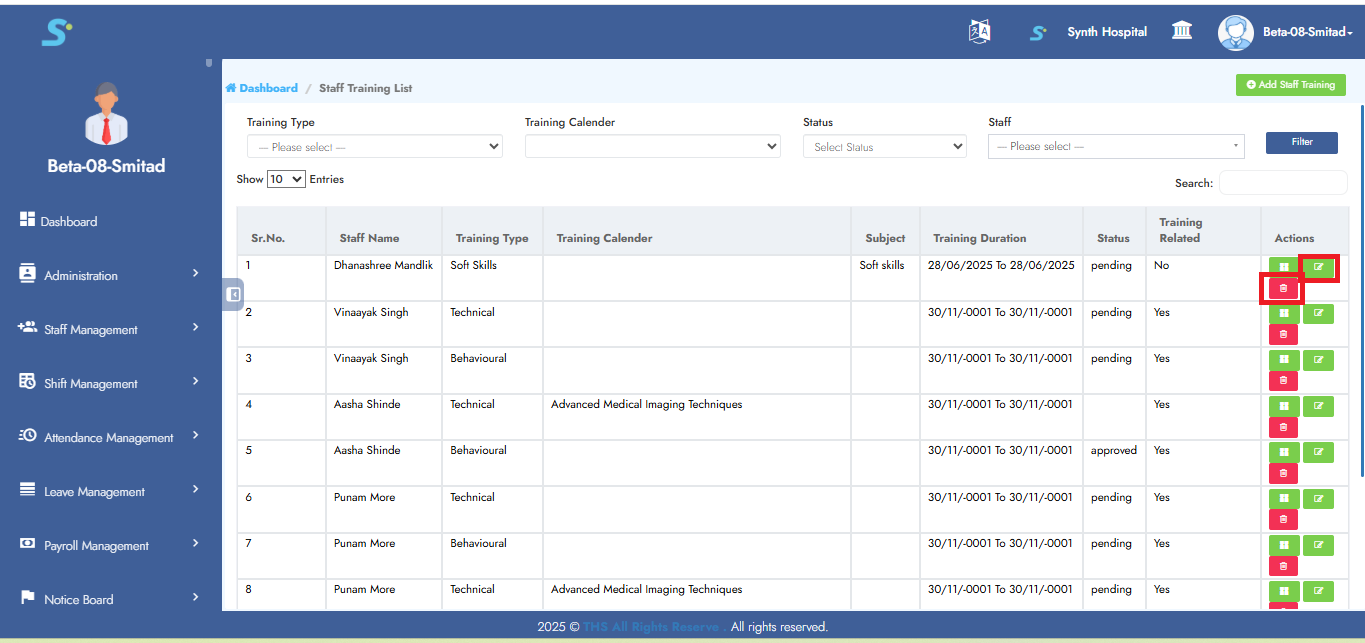
Step 9:- Edit or Delete Training
To edit a training, click the Edit button as shown in the image.
To delete it, click the Delete button as shown in the image.
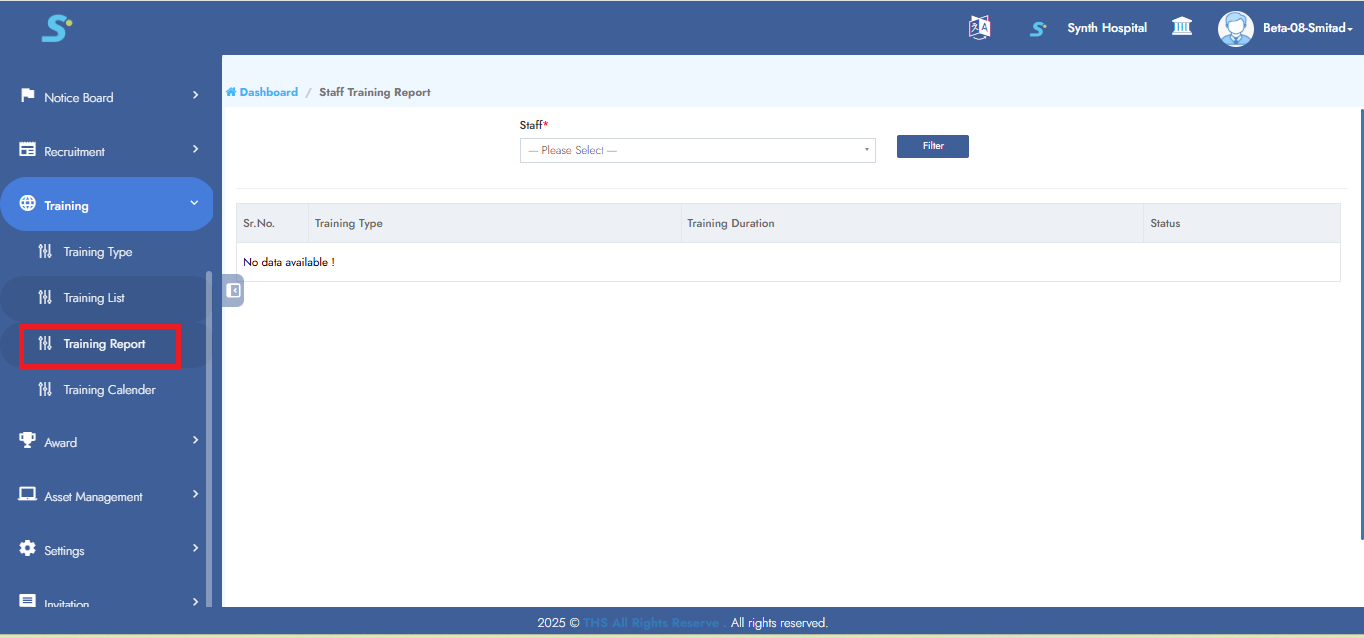
Step 10:- Access Training Report
Go to the Training module and click on Training Report, as shown in the image.
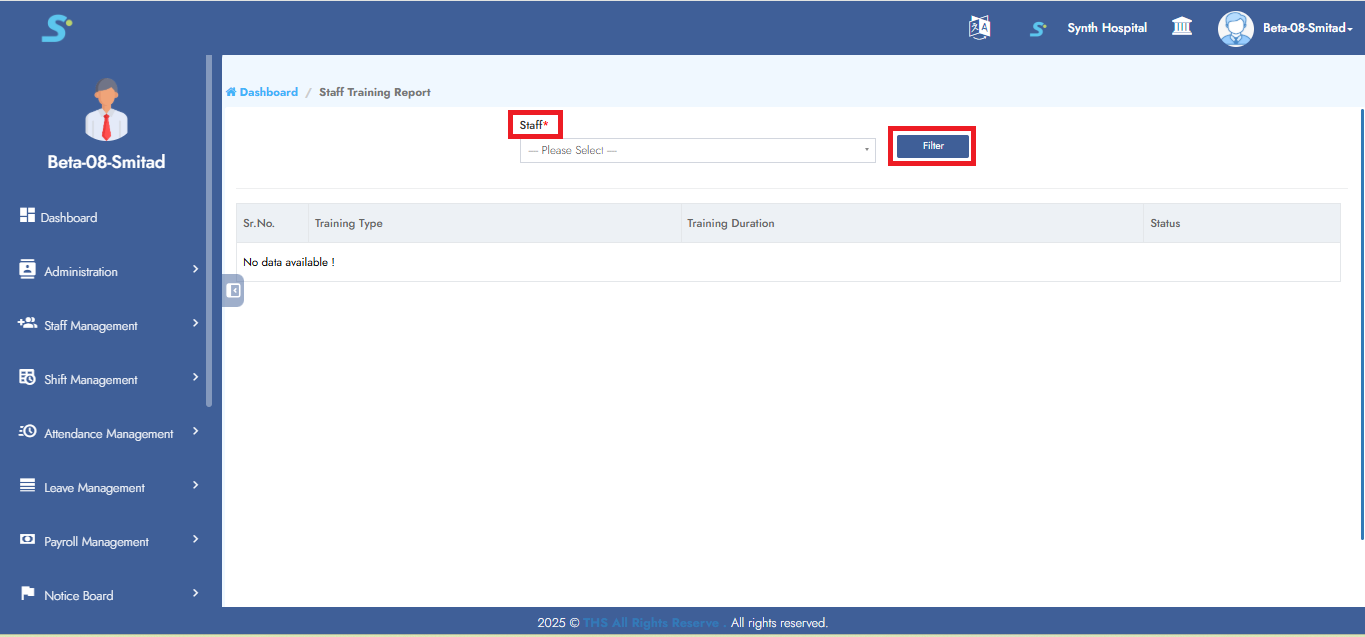
Step 11:-
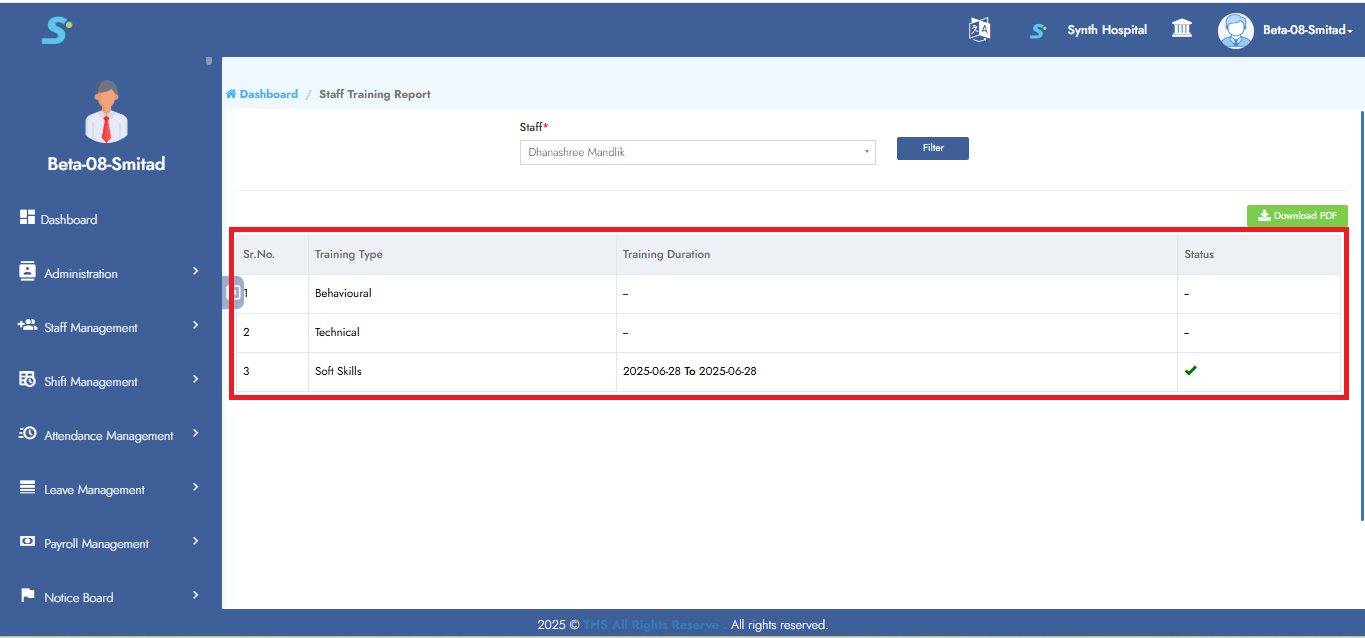
Select the Staff Name and then click on the Filter button, as shown in the image.
Step 12:- Employee Training Report click on right sides hsewoing buton add staff traing buuton you can added staff traing types . also
All training created by the employee will be displayed on the screen, as shown in the image.
Step 13:- Training Calendar View
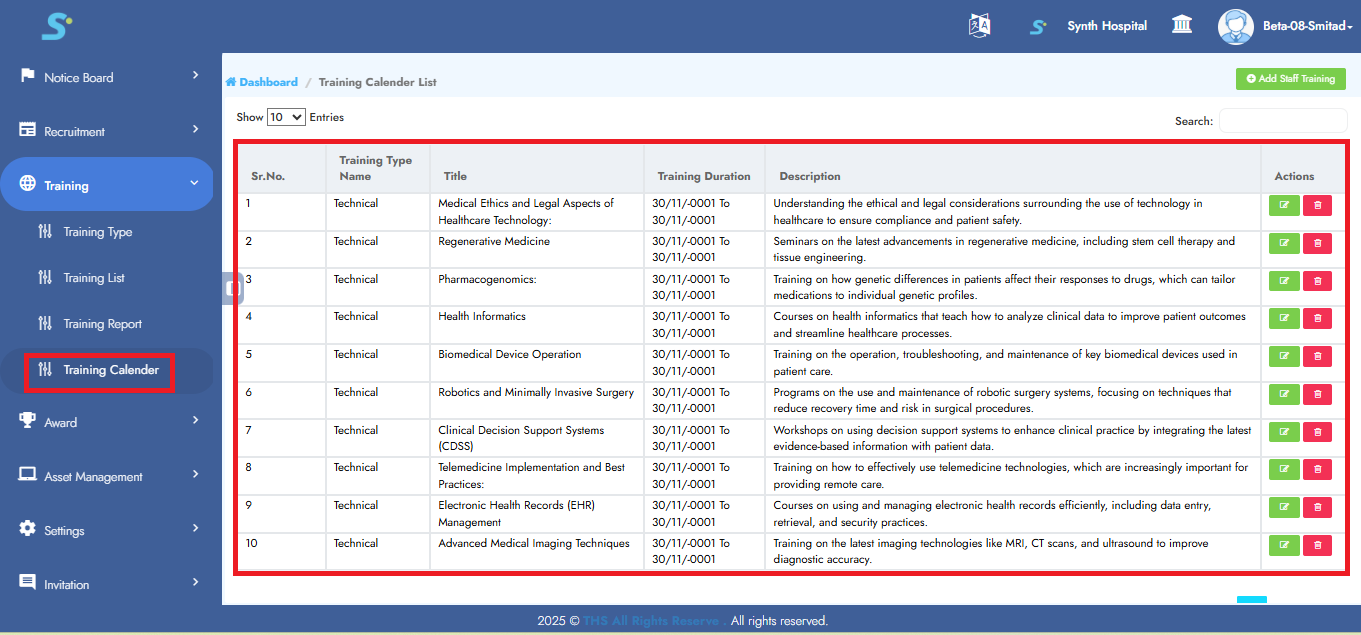
All trainings will be displayed in the Training Calendar, as shown in the image.
Step 14:- Edit or Delete Training Calendar
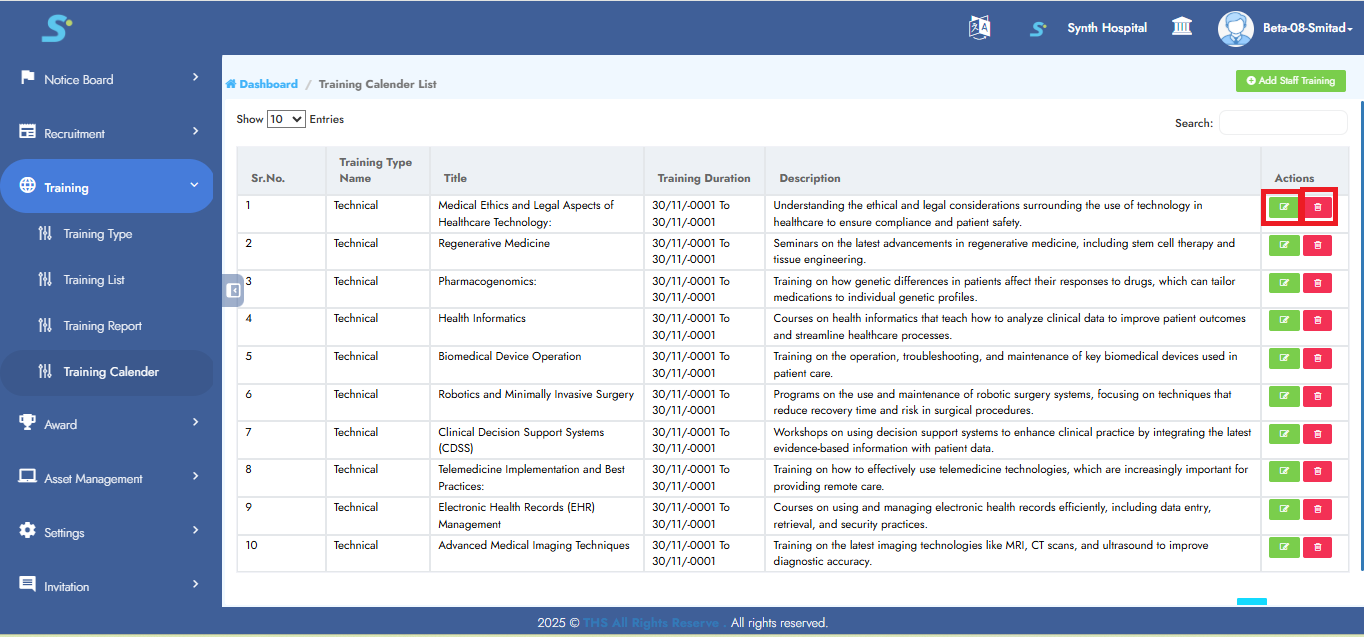
To edit a training calendar, click the Edit button as shown in the image.
To delete it, click the Delete button as shown in the image.
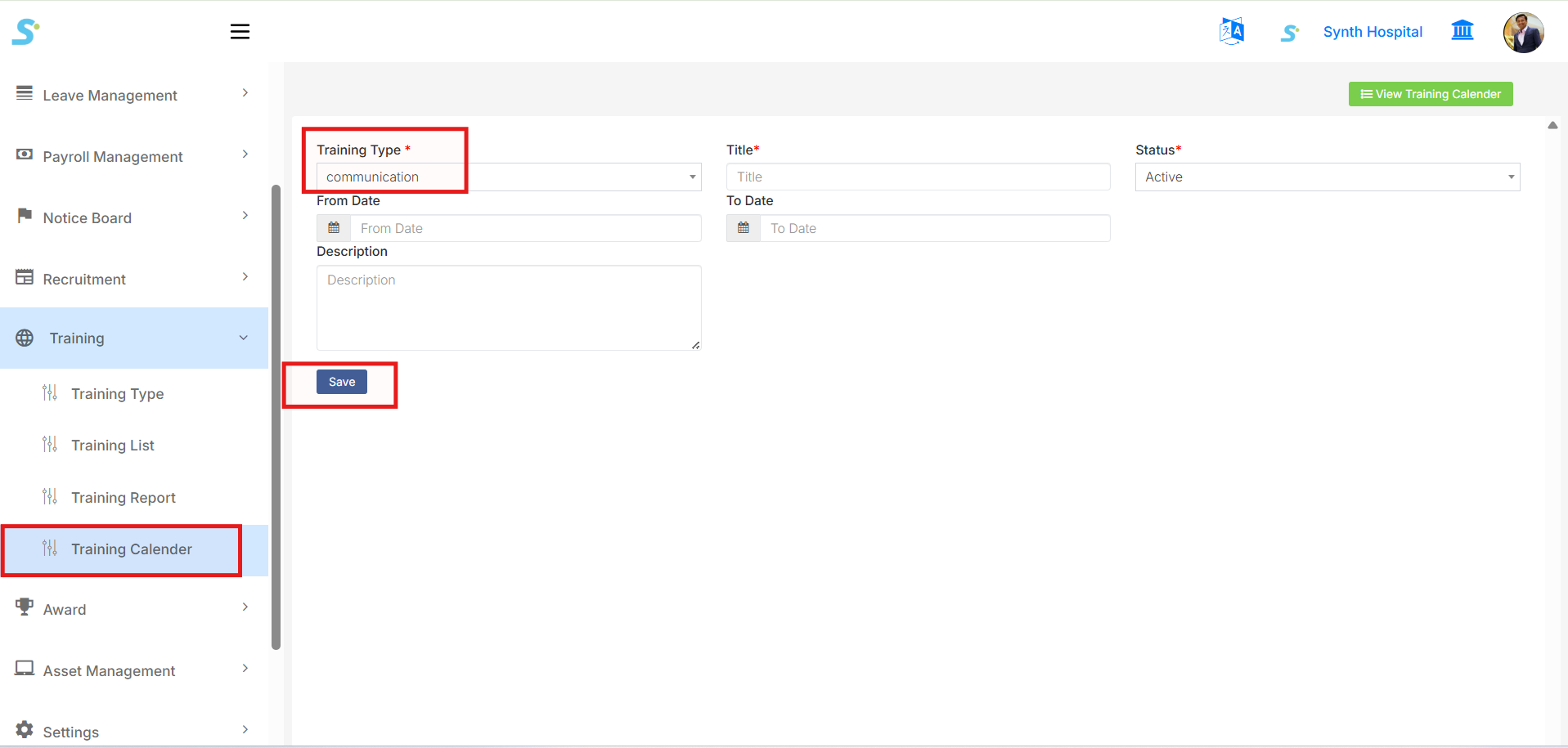
Step 15: Add Training Calendar Details
Click on Add Employee Training from the Training Calendar page.
This page is used to add training calendar details for employees.
Enter the required details:
- Training Type
-
Select the training type from the dropdown list.
-
Title
-
Enter the training title.
-
Status
-
Select the status, such as Active.
-
From Date
-
Select the training start date.
-
To Date
-
Select the training end date.
-
Description
- Enter training-related details or notes.
After entering all required details, click the Save button.
Once saved, the training calendar record will be available in the Training Calendar list.
From the top-right side, click View Training Calender to return to the calendar list page.